
Security
Zero Trust for Small Business Websites, Explained
Zero trust is a way of working, not a product. Learn how least privilege, MFA and offboarding apply to your small business website.
- By IT bugsolutions
- 8 min read
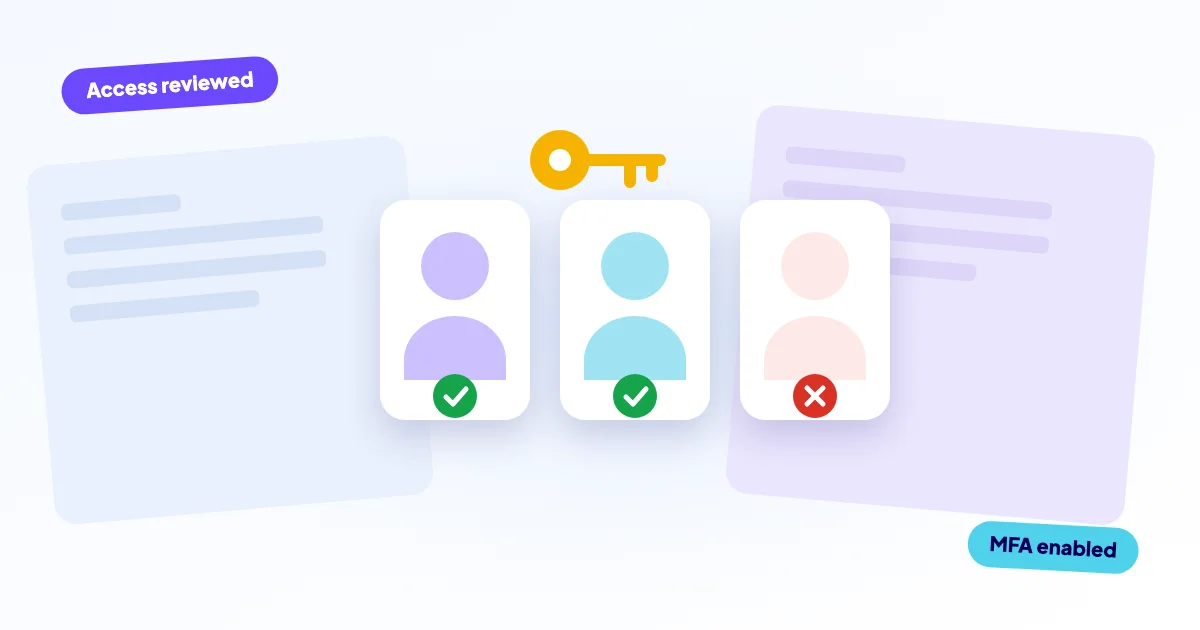
Zero trust is a way of working, not a product: you trust no login, device or person by default, and you check every access against what that person actually needs. For a small business it comes down to a few habits: separate accounts, least privilege, multi-factor authentication, secrets you can replace, and an exit routine. You do not need a big budget to apply it to your website.
- Zero trust means “never trust, always verify”: access is earned per person and per task, not granted once and forgotten.
- It is a set of habits, so no vendor can sell it to you as a box.
- The biggest wins for a small site: no shared logins, MFA on hosting, email and admin, and removing access when people leave.
- Every account and key you never review is a door you left unlocked.
What is zero trust, in plain words?
The old model of security was a castle: a strong wall around the office network, and everyone inside is trusted. That breaks down when your website runs on a host in another country, your team works from home, and your freelancer logs in from a laptop you have never seen.
Zero trust drops the castle idea. It assumes that any account can be stolen and any device can be infected, so every request has to prove itself. Three questions sit behind it: who is this really, what do they need, and what happens if this account is compromised?
The last question is the useful one. You are not trying to guarantee nothing ever goes wrong. You are limiting how far a single stolen password can get.
Is zero trust a product you can buy?
No. Vendors sell tools that help, but you cannot buy the result. A firewall with a “zero trust” label still fails if five people share one admin password.
Zero trust as a purchase
- One tool, installed once, then forgotten.
- Everyone keeps full access “to be safe”.
- Trust is based on being logged in or on the office network.
Zero trust as a habit
- Access is reviewed a few times a year.
- Each person gets only what their job needs.
- Every login is verified, ideally with a second factor.
Tools can help you do this, such as a password manager or an authenticator app. But the decisions about who gets what are yours.
How do you apply zero trust to a small business website?
Think of your site as a building with several doors: the hosting panel, the CMS admin, the database, FTP or SSH, your domain registrar, your email, and any API connected to payments or newsletters. Zero trust asks you to look at each door. The five principles below cover most of it.
- One person, one account. No shared logins, so you can tell who did what and remove one person without changing everything.
- Least privilege. A blog writer does not need to install plugins. A freelancer who designs pages does not need hosting access.
- MFA everywhere it exists. Start with email, hosting, domain and CMS admin.
- Secrets you can rotate. Passwords, API keys and tokens must be replaceable without a crisis.
- Watch and remove. Keep logs, review accounts, and close access when a job ends.
What does “least privilege” look like in practice?
Take the freelancer who built your site two years ago. The project ended, the invoice was paid, and nobody removed the admin account. Today that login still works, from a laptop you do not control, protected by whatever password they chose in 2023.
Nothing needs to be wrong with the freelancer for this to be a problem. If their email is breached, the attacker inherits full access to your site. The fix takes five minutes: demote or delete the account, and give access back only when there is a new job.
WordPress has built-in roles. Most people who write content need Editor or Author, not Administrator. Keep Administrator to one or two accounts, and give yourself a separate, everyday account for routine work.
The same idea applies to your own admin account. If you use an administrator login to write blog posts, a phishing click while you are logged in hands over everything. A separate admin account, used only for admin tasks, narrows that risk.
Why are shared logins such a problem?
Picture the hosting password that lives in an old email thread: “Here are the details for the server, please keep them safe.” Three people have it, one of them has left, and the mailbox is searchable by anyone who gets into that account.
A shared login breaks three things at once. You cannot see who made a change. You cannot remove one person without changing the password for all. And the password is usually sent in a way that leaves a permanent copy behind.
- Give each person a personal account instead of sharing one.
- Store shared secrets in a password manager with sharing, not in email or chat.
- Change any password that was ever sent by email.
- Use a dedicated admin email address that is not your everyday inbox.
How should you handle API keys and other secrets?
An API key is a password for software: your payment provider, your newsletter tool, your maps service. Keys often end up pasted into theme files, shared in screenshots or committed to code repositories, where they sit for years.
Apply the same logic. Give each key the smallest permission set it needs, keep it out of code that is shared, and know where it is used so you can replace it quickly. If you cannot say which keys exist, you cannot rotate them when someone leaves.
| Secret | Where it lives | When to replace it |
|---|---|---|
| Hosting and CMS passwords | Password manager | After staff changes, or any suspicion |
| Database password | Server config file | After a hack or a departing developer |
| API keys and tokens | Server settings, not in page code | When a person or tool is removed |
| Recovery codes for MFA | Offline or in the manager | After using one |
What should happen when someone leaves?
Offboarding is where zero trust earns its keep. People leave on good terms and still keep access, simply because nobody wrote down where they had it.
Keep a short list of who has access to what: hosting, domain, CMS, analytics, email, payment tools, code repository. When someone leaves, remove or change each item that same day. For anything shared, such as the database password or an API key, replace it.
Tight access can backfire if only one person holds the keys. Keep recovery options for the domain and hosting under your own control, and store MFA recovery codes safely. If a login problem does lock you out, our guide on a WordPress login that does not work shows what to check.
Why do logs and reviews matter?
“Always verify” only works if you can see what is happening. Logs record logins, failed attempts, new users and file changes. Without them, a break-in looks identical to a quiet week.
You do not need to read logs daily. Turn them on, keep them for a reasonable period, and set alerts for the events that matter, such as a new administrator or a login from an unusual place. Review the list of accounts every quarter and delete what nobody can explain.
If you find an account or file you cannot explain, treat it seriously. Our guide on what to do in the first hour after a hack walks through the steps, and the page on repairing a hacked website explains how we handle it.
Where do you start, and what can we do for you?
Start with a thirty-minute audit. List every account that can change your site, enable MFA on the main ones, remove what is unused, and move passwords into a manager. That alone puts you ahead of most small businesses. For more habits that fit alongside this, see seven simple cybersecurity measures that work.
We can do this review for you. We repair and secure websites remotely, with a free diagnosis, a fixed price before any work starts, and a backup before every change. Our website care plans automate the routine parts, such as daily off-site backups, security scans and updates with rollback. Zero trust still requires your decisions about who gets access, so we do not promise to prevent every attack. Questions first? Contact us.
Frequently asked questions
Also see