
Maintenance
Outdated Website Software: Risks and How to Update
Outdated CMS, plugins and PHP are a top reason sites get hacked or break. Learn how to check what you run and update safely with backup and rollback.
- By IT bugsolutions
- 6 min read
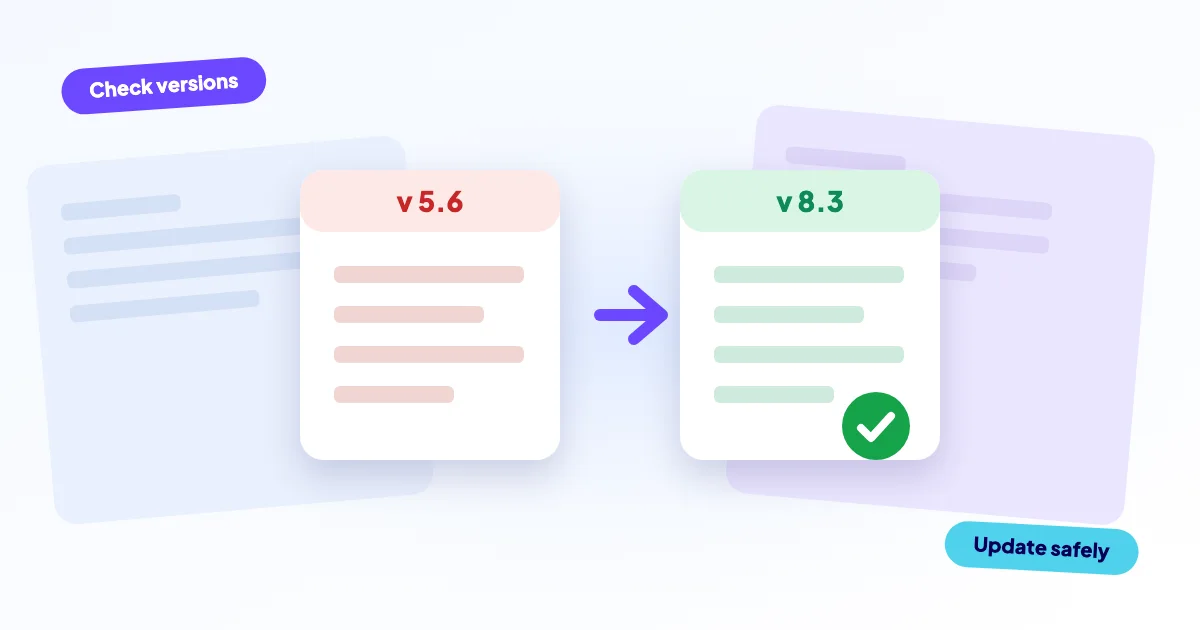
Outdated software is the most practical way websites get hacked or break. When a CMS, plugin, theme or PHP version falls behind, known security holes stay open and compatibility problems pile up. The fix is routine: know what you run, back up, test updates on a copy, update in small steps, and keep a way to roll back.
- Security fixes are public the moment they are released, so unpatched sites become easy targets.
- Old PHP versions stop receiving security fixes entirely once they reach end of life.
- Update safely: backup first, test on a staging copy, update step by step, keep a rollback ready.
- Skipping updates for years makes each update riskier, not safer.
Why is outdated software dangerous?
When a developer fixes a security hole, the release notes and the code change are public. That helps everyone patch, but it also tells attackers exactly where older versions are weak. Bots then scan the web for sites still running the old version.
Imagine a contact form plugin you installed three years ago and never touched. A flaw is found and fixed in a new release. Your site is now listed among thousands that can be taken over automatically, without anyone choosing you.
Outdated software also breaks things. Old plugins stop working with newer PHP versions, which can bring up a white screen or the message that a critical error has occurred on your WordPress site.
What counts as outdated software?
Four layers can fall behind, and each one needs attention.
| Layer | Examples | Risk when old |
|---|---|---|
| CMS core | WordPress, Joomla, Drupal, Laravel | Known holes, missing fixes |
| Plugins and themes | Forms, SEO, shop extensions | Most common entry point |
| PHP | The version your host runs | No security fixes at end of life |
| Server software | Database, web server, libraries | Usually handled by your host |
Abandoned plugins are a special case. If a plugin has not been updated by its author for a long time and is no longer maintained, any hole found in it will never be fixed. Replace it.
What does end-of-life PHP mean?
Each PHP version gets a limited period of support. After that it reaches end of life (EOL) and receives no more bug or security fixes, even for serious problems. The official overview of supported versions is on php.net.
PHP 7.4 and older versions have been end of life for years. If your hosting panel still shows one of them, plan the move now. Moving up is rarely a single click, because old plugins and custom code may rely on removed features. That is why you test first.
How do you check what your site runs?
You cannot update what you do not know about. A short inventory takes about twenty minutes.
- Log in to your CMS admin and note the core version.
- List every plugin and theme with its version, and mark what is outdated or inactive.
- Check the PHP version in your hosting panel or in the site health screen of your CMS.
- Look up each plugin you rely on and see when it was last updated by its author.
- Write it all down in one document, with the date.
Every deactivated plugin or old theme you delete is one less thing to patch and one less thing to attack. Delete rather than deactivate.
How do you update safely?
Most update disasters come from rushing, not from updating. Follow the same order each time.
- Backup
- Copy to staging
- Update and test
- Update live
- Check, or roll back
Take a backup first
Make a full backup of files and database, and store it off the server. Check that it exists before you continue. Without a tested backup, an update is a gamble.
Test on a staging copy
A staging site is a private copy of your website. Update it first and click through the pages that matter: homepage, forms, login and, for a shop, the checkout. Problems show up there, where no customer sees them.
Update in small steps
Update plugins one at a time or in small groups, and the core separately. If something breaks, you know which change caused it. Do this at a quiet moment, not on a Friday afternoon before a campaign.
Keep a rollback ready
If the live site breaks, restore the backup first, then investigate on staging. Rolling back calmly beats debugging under pressure. If your site is already down after an update, see what to do when a site breaks after an update.
Don't
- Click "update all" with no backup
- Test only on the live site
- Leave updates for two years, then do them at once
- Keep unused plugins deactivated
Do
- Back up off-site first
- Test on a staging copy
- Update regularly in small batches
- Delete what you do not use
What if you have waited too long?
A site that is several versions behind needs a careful route, not one big jump. The usual order is: back up, clean up unused plugins, upgrade PHP to a version the site supports, then step through the CMS and plugin updates. Some old plugins have to be replaced.
An outdated site may already be compromised. Look for unknown admin users, strange redirects or pages you did not make. If you find them, deal with that before updating. See what to do when your website is hacked.
Which updates should you do first?
Not every update is equally urgent. Security releases come first, because they close a hole that is already public. Feature releases and design changes can wait for a calmer moment.
Release notes usually say whether an update is a security fix. When a vendor describes a critical vulnerability, treat it as the same-day job it is, with a backup and a quick check afterwards. Keep the rest on a regular monthly rhythm.
How can we help?
Updating is not hard, but doing it safely takes time and care, and it never ends. Our care plans include safe updates with rollback, daily off-site backups, uptime checks with alerts, SSL and domain expiry alerts, security scans and a monthly report. Our website security basics show where updates fit in the bigger picture.
Already behind, or something broke? Contact us for a free first diagnosis. You get a fixed price before any work starts, and we make a backup before every change.
Frequently asked questions
Also see